How to Use Google Data Studio: The Complete Guide from Beginner to Expert 🚀
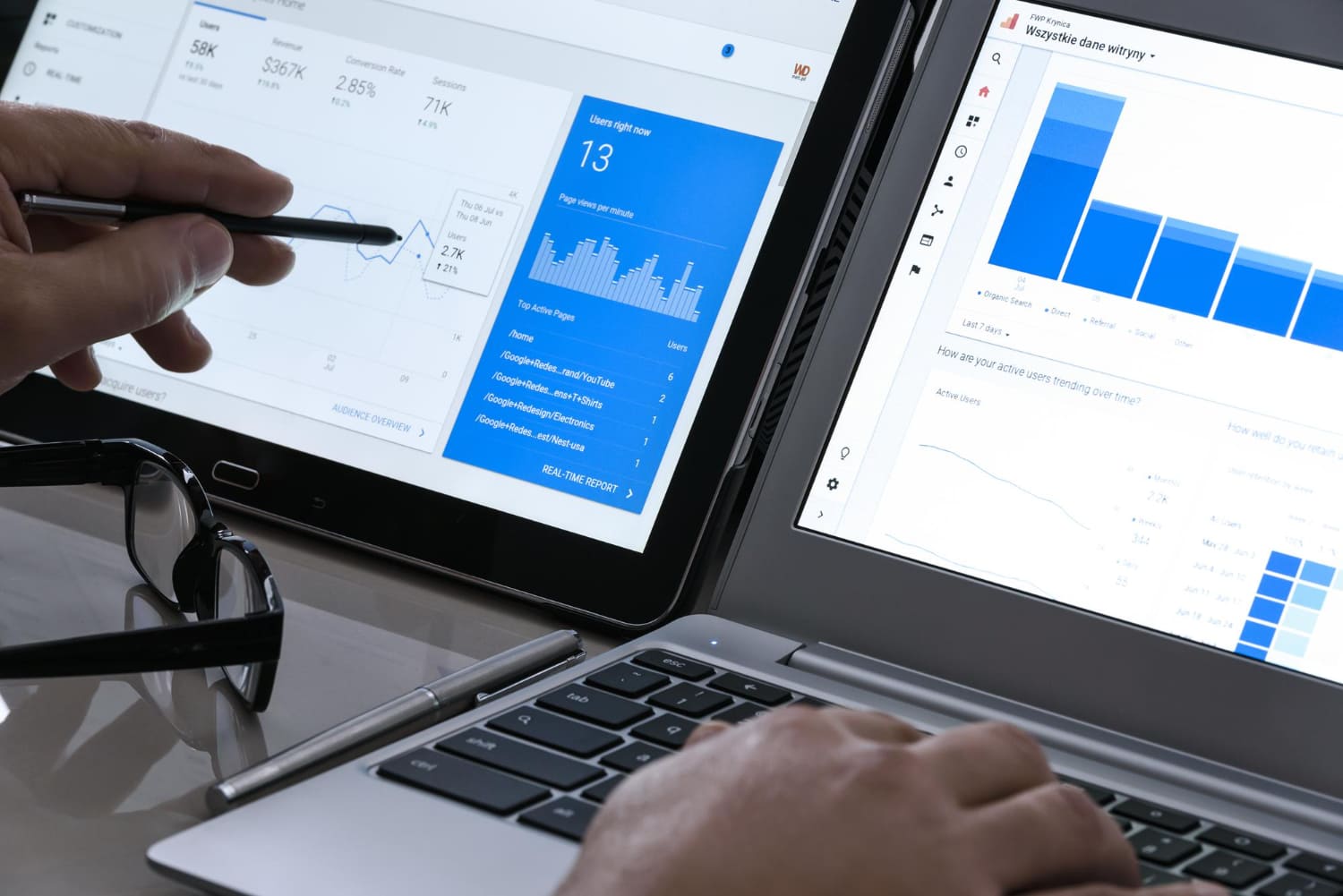
Google Data Studio (now Looker Studio) is a powerful and free data visualization tool that lets you create interactive reports and dashboards. It's ideal for analyzing data from a variety of sources, from Google Analytics and Google Ads to native databases and Google Sheets. This article will provide you with a comprehensive guide to using Google Data Studio, from basic concepts to advanced techniques.
1. Getting started: registration and first steps 👶
Before you can start creating amazing reports, you need to sign up for Google Data Studio. If you already have a Google account, the process will only take a few seconds. Just go to lookerstudio.google.com and login. Once logged in, you will see the main screen with the option to create a new report or use templates. It is recommended that you start by reviewing the templates provided to understand the platform's capabilities. They will show you how you can visualize data of different types and sources.
2. Connecting data sources 🔗
The heart of any Google Data Studio report is the data. Connecting data sources is the first and most important step. Data Studio supports a wide range of sources, including:
- Google Analytics: Analyze web traffic, user behavior, conversions and more.
- Google Ads: Track advertising campaigns, keyword performance and costs.
- Google Sheets: Ideal for working with data collected manually or imported from other sources.
- BigQuery: For working with large data sets.
- MySQL, PostgreSQL, and other databases: Connect to various databases via connectors.
- CSV and other files: Import data from files. The process of connecting a data source usually includes:
- Clicking the "Create report" or "Add data" button.
- Selecting a data source from the list of available ones.
- Enter the required credentials (for example, Google Analytics account ID).
- Selecting the required data fields. It is important to choose the right data fields that you want to use in your report. An incorrect choice may result in incorrect visualization or missing required information. Look at examples of our work where we effectively used data from different sources: https://Asgard Digital.ru/#raboty
3. Creating visualizations: charts and graphs 📊
Once your data source is connected, you can start creating visualizations. Google Data Studio offers a wide selection of charts and graphs, including:
- Bar Charts: Ideal for comparing values across categories.
- Pie Charts: Shows the proportions of different parts of a whole.
- Line graphs: Show changes in data over time.
- Scatter Plots: Shows the relationship between two variables.
- Maps: Visualizes geographic data.
- Tables: Presentation of data in tabular format. The choice of chart type depends on the type of data and visualization goals. For example, to show sales dynamics over time, it is better to use a line graph, and to compare the market share of different brands, it is better to use a pie chart.
4. Create reports and dashboards 📄
Reports in Google Data Studio are a collection of visualizations combined into a single whole. They may contain several pages, each dedicated to a specific topic or aspect of the data. Dashboards are a simplified version of reports designed to provide a quick overview of key metrics. Report creation includes:
- Adding visualizations to the page.
- Customize the parameters of each visualization (color, size, labels, etc.).
- Organizing visualizations on the page for better perception of information.
- Add text, images, and other elements to enhance your design. Dashboard creation includes:
- Selection of key indicators.
- Add visualizations that display these metrics.
- Organization of visualizations on the panel for quick perception of information.
5. Working with measurements and indicators 🧮
In Google Data Studio, data is presented in the form of dimensions and metrics. Dimensions are categorical data (for example, country, city, product), while metrics are numeric data (for example, number of sales, revenue, number of visitors). Using dimensions and metrics correctly is the key to creating effective visualizations.
6. Filters and segments: data granularity 🔎
Filters and segments allow you to drill down into your data and focus on specific aspects. Filters allow you to filter data based on specific criteria, and segments allow you to compare data from different groups.
7. Advanced features: controls, parameters and formulas ⚙️
Google Data Studio offers advanced features that let you create more complex and interactive reports. These include:
- Controls: Allow users to interactively change data in a report (for example, selecting a date, region, or product).
- Options: Variables that can be used in formulas to change data dynamically.
- Formulas: Allow you to create new indicators and dimensions based on existing data.
8. Collaboration and exchange of reports 🤝
Google Data Studio makes it easy to share reports and dashboards with other users. You can provide access to reports at the viewing or editing level.
9. Best practices and tips for effective visualization 💡
- Less is more: Don't overload your reports with redundant information.
- Clear and Understandable Design: Use clear and understandable headings, labels and legends.
- Target Audience Relevance: Create reports that are tailored to your audience's knowledge and needs.
- Update regularly: Update your reports regularly to keep them current.
10. Conclusion: mastering Google Data Studio is an investment in the future 🏆
Google Data Studio is a powerful tool that can greatly improve your data analysis and decision-making capabilities. Having mastered it, you will gain a valuable skill that will be in demand in the labor market and will help you in your professional activities. Don't be afraid to experiment, use different features, and create your own unique reports. Remember that practice is the key to success! Get started today and you'll be amazed at how easy and efficient it is to work with your data using Google Data Studio. And don't forget to look at our cases for inspiration: https://Asgard Digital.ru/#raboty.